
- Published on
- •2 min read
Why the Lock Icon Lies on a Company Laptop
- Authors

- Name
- Pulathisi Kariyawasam
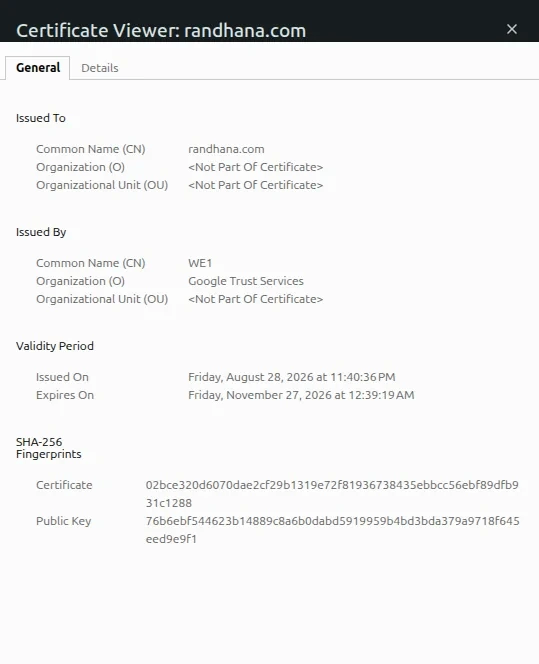
One day I opened my own website on my company laptop. I clicked the small lock icon in the browser and looked at the certificate details. Something felt wrong.
The issuer was not Google Trust Services. That is the authority that usually gives certificates to my site. The expiry date was also different. The certificate came from the security software installed on my laptop.
That small moment made me want to understand it properly. If you are a developer, you probably use a work laptop every day. So this topic matters more than it seems.
On a normal network, the certificate for my site is issued by Google Trust Services, the real authority:
What HTTPS promises
When you open an HTTPS website, your browser and the server do a short handshake. They agree on a secret key. After that, everything they send is locked, so nobody in the middle can read it.
That is the promise. On your home internet, with your own laptop, the promise works well.
On a company laptop, it does not work the same way. Not completely.
What security software does to your traffic
Many company security tools have a feature called SSL inspection. You may also hear it called HTTPS inspection or TLS inspection. The reason is simple. To look for viruses inside encrypted traffic, the tool first has to open it.
Normally, there is one direct connection between your browser and the website. With inspection, there are two:
Browser  ──TLS──►  Security agent  ──TLS──►  Website
         (conn 1)                   (conn 2)
The security agent sits in the middle. It opens the first connection and reads the traffic. It checks the traffic, then opens a second connection to the real website. The website thinks it is talking to a normal browser. It has no idea the agent is there.
This is called a man-in-the-middle. Someone sits between two people and passes messages along. Here, the company does it on purpose, on a laptop it owns.
Why companies do this
I want to be fair here. Companies are not doing this to spy on people for fun. Most websites now use encryption, and attackers know it. A virus download, a fake login page, or stolen data can all look like normal encrypted traffic. A security tool that cannot see inside that traffic misses most of the danger.
So companies open encrypted traffic to:
- Scan for viruses hidden in downloads and web pages
- Stop data leaks. This is called data loss prevention, or DLP. It can stop source code or customer data from being uploaded to the wrong place.
- Block malware that talks to its owner over HTTPS
- Filter websites by rules, such as blocking certain categories
- Meet audit rules that ask companies to keep records of what leaves the network
From the company's side, this is a fair trade. You give up some privacy on a company device. In return, the company catches threats it would otherwise miss. The problem is not that it is evil. The problem is that most people never know it is happening.
The firewall does it too
The laptop is not the only place this happens. The same trick can run on the company network, in a firewall or a web gateway. The network device does the same job. It opens the encrypted traffic, checks it, and sends it on.
The only difference is where it happens:
Laptop agent:    Browser ─► [agent on your laptop] ─► internet
Network device:  Browser ─► router ─► [firewall] ─► internet
This means a network device checks traffic from every device on the network, including phones and servers. Many companies use both, so there is no gap.
A simple way to tell which one is involved is to check the certificate issuer. Each product signs certificates with its own name. A certificate authority, or CA, is the trusted party that does the signing.
Why the browser does not warn you
Normally, if someone in the middle changes a certificate, the browser shows a big warning. The browser does not trust a certificate it does not recognize.
Security software avoids this with one setup step. Before I got the laptop, IT installed the agent's root CA into Windows. They did this quietly through Group Policy, a setting that IT pushes to every computer. So when the agent makes a new certificate for my site, my browser trusts it. The domain name matches, so there is no warning.
That is what I saw. The agent read the real certificate from my site. It made a new one, signed it with its own key, and gave that to my browser. The browser was happy. But the certificate was not the one my server sent.
What it can see
Once the agent opens the connection, it can read a lot:
- Every address you visit, including the parts after the question mark
- What you type into forms, like search boxes and login pages
- Files you upload or download
- Cookies and login tokens
This is the main purpose of inspection. The goal is to catch bad content and stop data leaks. Many modern viruses use HTTPS, so without inspection, the tool would be blind to them.
Even when the agent does not open a connection, one thing is still visible: the website's name. The name is sent at the start of the connection, in a field called SNI. DNS lookups show it too. So the company can still see which sites you visit, even if it cannot read what you do there.
What about passwords?
Many people ask this. If I type my password into a login form, and the agent opens the traffic, can it see my password?
Technically, yes. A login form sends the password inside the encrypted part of the request. Once the connection is open, that part is plain text to the agent.
In real companies, though, careful setups avoid this problem in three ways:
- Sensitive sites are left alone. Banks, hospitals, and often email services are not opened. The tool only sees the site name. Companies do this because they do not want to hold other people's passwords.
- Request content is not saved to logs. The tool checks traffic in memory and then sends it on. Saving every password to a log file would be a serious mistake, so good setups do not do it.
- Access is limited and recorded. Only a few people can read the decrypted logs. Their use of those logs is also recorded. The logs are for investigations, not for casual looking.
So the right way to think about it is not "IT is reading my passwords." It is more like "the ability exists, and a good setup is built to avoid using it that way."
From the employee side, the lesson is simple. A company laptop with security software, on a network that inspects traffic, is not the place for private things. Looking for a new job during work hours, moving private files, or doing anything you would not want seen: think twice about it.
Private browsing hides your history from the next person sitting beside you. It does not hide anything from the security agent. None of this means you should be scared. It just means you should remember that someone can see your screen's activity.
Does the app matter?
No. This is the most important part to understand.
The security agent usually installs a network filter at the operating system level. That filter sits below every app. So it works on Chrome, Firefox, Edge, curl, Python scripts, Postman, and Java apps. It does not matter which app you use.
Any app (browser, curl, python...)
        ↓
Windows network layer
        ↓
Security agent filter  ←── inspection happens here
        ↓
Network card → internet
Switching browsers will not help. Using curl in the terminal will not help either. The inspection happens at the system level. What changes between tools is how they react. Each tool checks a different list of trusted certificates.
Chrome and Edge use the Windows list, so they stay quiet. Firefox keeps its own list, so it may show a warning unless the agent's certificate was added there too. curl has its own list. So on a company laptop, curl https://somesite.com might give an SSL error. The traffic was still inspected. curl just refused to continue because it did not know the issuer.
You can check this yourself:
curl -v https://yourdomain.com 2>&1 | grep "issuer"
If the issuer shows your security software and not the real certificate authority, inspection is active.
Here is what a clean result looks like on a normal network, where nothing is in the middle. The issuer is the real certificate authority, and the check passes:
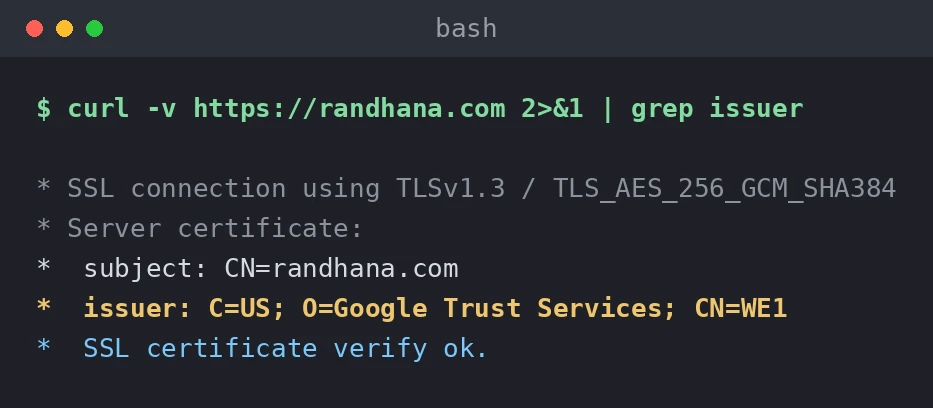
On a company laptop with inspection active, the same command shows a different issuer, your security product's name, and curl may stop with a certificate error because it does not trust that issuer.
What about forward secrecy?
If you know TLS well, you might think: modern servers use forward secrecy. Even if someone records the traffic and gets the server's private key later, they still cannot decrypt it. The session key was temporary and never travelled over the network.
That is true, but only against an outside attacker who records traffic and tries to decrypt it later.
The security agent is not an outside attacker. It is one of the two ends of both connections. It creates its own temporary keys on each side and reads the text as it passes through. Forward secrecy protects recorded traffic from later attacks. It does not protect against something that is already inside the connection while it happens.
SSH works differently
This is where the story changes. SSH is a different protocol with its own way of checking identity. The agent cannot sit in the middle of an SSH session the same way, because there is no trusted certificate for it to use.
If you connect to a server like this:
The agent can see:
- The server's address and port
- That an SSH connection happened
- How much data moved
The agent cannot see:
- Your password or private key
- The commands you typed
- What you did inside the session
SSH uses its own key exchange, separate from the Windows certificate list. So the usual trick does not work there.
Do virtual machines and sandboxes help?
I wondered about this too. If I run a browser inside a virtual machine or Windows Sandbox, am I safe from inspection?
The answer depends on how the setup is built. A sandbox has two kinds of separation. First, it has its own certificate list, so the agent's certificate is not there. Second, it has its own virtual network card. The traffic still leaves through my laptop. But it does not always pass through the same filter.
If the filter is attached only to the laptop's main network card, the sandbox traffic can slip past it.
You can test this yourself. Open a site inside the sandbox and look at the certificate. If you see the real certificate with no warning, the traffic was not decrypted. If it had been intercepted, the sandbox would not trust the agent's certificate, so you would see a warning.
So isolation sometimes helps. But do not rely on it. A different setup can inspect virtual machine traffic too. The only sure way to avoid inspection is a separate device on a different network, where the security software was never installed.
Things to remember on a company device
This is not about being paranoid. It is about knowing your environment.
- Assume your HTTPS traffic is visible to the security team.
- Use personal devices for personal email, banking, and other sensitive accounts.
- Anything you type into a web form passes through the inspection layer.
- API keys and tokens in browser requests may be logged.
- SSH content is private, but the fact that you connected, and where, is visible.
Most companies have an acceptable use policy that covers this. It is worth reading if you have not.
Why this matters for developers
As a developer, you probably call APIs, test endpoints, push code, and manage servers. You often do all of this on the same laptop you use for everything else. It is easy to forget that this environment is not neutral.
Knowing about inspection helps in a few ways:
- If HTTPS calls fail on a company laptop with certificate errors, the problem may be the company's certificate. It may not be your app or your server.
- Tools that check an exact certificate fingerprint, called certificate pinning, will break under inspection. This can be confusing to debug.
- Running curl against your own API might fail, even when your server is set up correctly.
When you know which layer your tools run on, these problems are much easier to trace.
The lock icon still means something. It just does not always mean what you think. On a company laptop, it means the connection is encrypted. But the encryption may end at the security agent on your own machine, not at the server you wanted to reach.
Know your environment. It will make you a better debugger and a more careful engineer.