
- Published on
- •2 min read
Linux CopyCache: Building a Modern Clipboard Manager with AI-Assisted Development
- Authors

- Name
- Pulathisi Kariyawasam
Introduction
As a Linux user transitioning from Windows, I found myself missing the native Win+V clipboard history feature. While Linux has several clipboard managers available, finding a lightweight, keyboard-friendly solution that "just works" on Ubuntu proved surprisingly challenging.
That's why I decided to build Linux CopyCache (linux-copycache) as a pet project: a fast, PyQt6-based clipboard manager that sits quietly in your system tray, records your copied text to a local SQLite database, and instantly pastes selected history back into your active window.
What made this project particularly interesting was the development approach - I leveraged AI coding agents for a significant portion of the implementation, which dramatically accelerated the development process and helped me explore new patterns in desktop application architecture.
Project Features
Core Functionality
- Background clipboard monitoring using PyQt6's QClipboard signals
- Local SQLite database storing up to 100 clipboard entries
- System tray integration for seamless background operation
- Keyboard shortcuts for quick access (
Ctrl+Shift+Vby default) - Cross-desktop support for both X11 (xdotool) and Wayland (wtype)
- Smart duplicate handling with timestamp updates for recurring copies
User Experience
- Frameless Qt window with modern CSS styling mimicking Windows clipboard UI
- Instant paste functionality using simulated keyboard events
- Lightweight footprint with minimal system resource usage
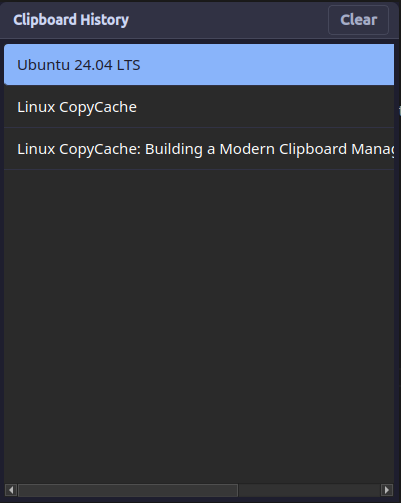
Technical Architecture
The application follows a clean, modular architecture split into three main components:
1. Database Layer (db.py)
A lightweight SQLite wrapper that handles local storage:
# Stores clipboard entries with automatic size limiting
# Location: ~/.local/share/clipboard_history.db
# Max entries: 100 (auto-cleanup of oldest)
2. Background Daemon
Built into the main application loop using PyQt6's event system:
- Listens for clipboard changes without polling
- Filters out duplicate and empty entries
- Automatically saves new text items to database
3. PyQt6 GUI (clipboard_gui.py)
A responsive, frameless Qt window featuring:
- Modern CSS styling for native feel
- Keyboard navigation support
- Automatic text copying and paste simulation
- Focus restoration to previous application
Technology Stack
- Python 3.8+ - Core runtime
- PyQt6 - GUI framework and clipboard monitoring
- SQLite - Local database storage
- xdotool/wtype - Cross-desktop paste automation
- PyPI - Package distribution
- GitHub Actions - Automated CI/CD pipeline
Distribution & Automation
PyPI Packaging
One of the project goals was making installation effortless for end users. The application is distributed via PyPI, allowing anyone to install it with:
pip install linux-copycache
linux-copycache  # Launch the application
The setup.py configuration includes console script entry points that automatically create the linux-copycache command when installed.
Automated Publishing with GitHub Actions
I implemented a fully automated release pipeline using GitHub Actions and PyPI Trusted Publishing (OIDC):
- One-click releases - Tag a release on GitHub, automatic PyPI deployment
The workflow triggers on GitHub releases and handles building, testing, and publishing automatically.
AI-Assisted Development Experience
Where AI Agents Helped Most
This project was partially developed using AI coding agents, which proved invaluable in several areas:
Architecture Planning: AI agents helped design the modular structure and suggested PyQt6 over alternatives like Tkinter for better native integration.
PyQt6 Implementation: Complex GUI programming patterns, especially around system tray integration and clipboard monitoring, were accelerated significantly with AI assistance.
Cross-Platform Compatibility: AI agents provided solutions for handling both X11 and Wayland environments, saving hours of research and testing.
Packaging Automation: The entire PyPI packaging setup and GitHub Actions workflow was crafted with AI guidance, including OIDC configuration.
The Development Flow
The AI-assisted development process typically involved:
- Planning - Discussing architecture and approach
- Rapid prototyping - Quick implementation of core features
- Manual review and testing - Thorough code review and functionality testing to ensure quality
- Documentation generation - README, setup instructions, and code comments
Installation & Usage
Compatibility
Currently tested and fully supported on:
- Ubuntu 24.04 LTS
- Ubuntu 22.04 LTS
Future versions will include compatibility with other Linux distributions. If you encounter any issues on your system, please don't hesitate to open an issue on the GitHub repository.
Installation
# Install from PyPI
pip install linux-copycache

# Launch the application
linux-copycache

# The app runs in system tray
# Use Ctrl+Shift+V to open clipboard history
The Future of AI-Assisted Development
Why AI Agents Are Game Changers for Developers
Working on this project reinforced my belief that AI coding agents are transforming how we build software. Here's what I've learned:
Faster Iteration Cycles: What used to take days of research and implementation can now be prototyped in hours. AI agents excel at handling boilerplate code, configuration files, and common patterns.
Learning Accelerator: AI agents act as pair programming partners that never get tired of explaining concepts. I learned more about PyQt6 and desktop application patterns in this project than I would have in months of solo development.
Focus on Logic, Not Syntax: With AI handling much of the implementation details, I could focus on the core application logic and user experience decisions.
Confidence to Explore: AI assistance made me more willing to try new technologies (like PyQt6) and deployment methods (OIDC publishing) that I might have avoided due to learning curve concerns.
Thanks for reading 👋